Connect Microsoft Teams to Origin by Corvus
Break through siloes in a mixed Origin by Corvus and Microsoft Teams environment by forwarding real-time chat notifications from Microsoft Teams to Origin by Corvus.
Deploy
Setup starts in Microsoft Teams and ends in Origin by Corvus.
Set up an OAuth application in Azure
- Sign into portal.azure.com using an admin Azure account.
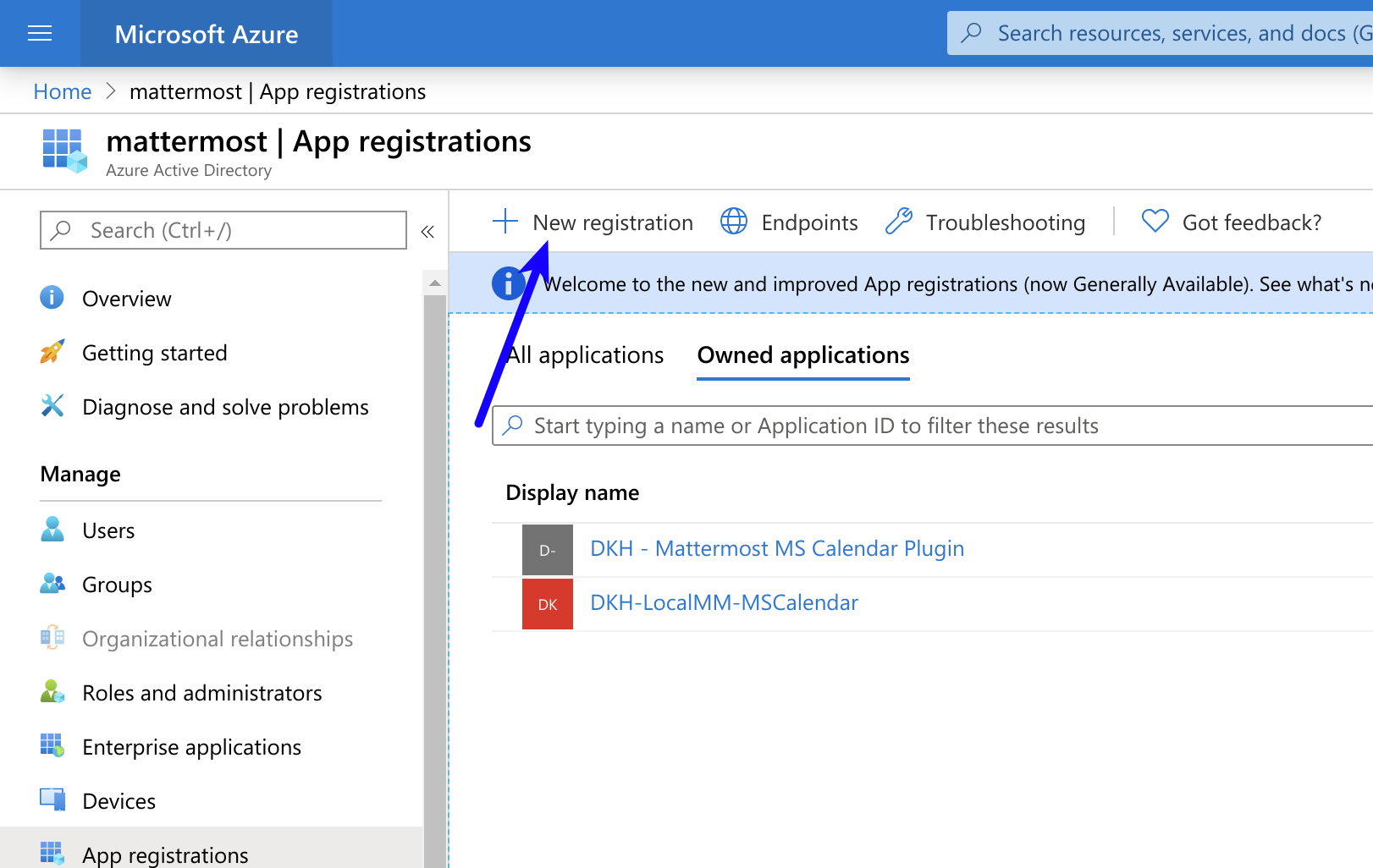
- Navigate to App Registrations.
- Select New registration at the top of the page.
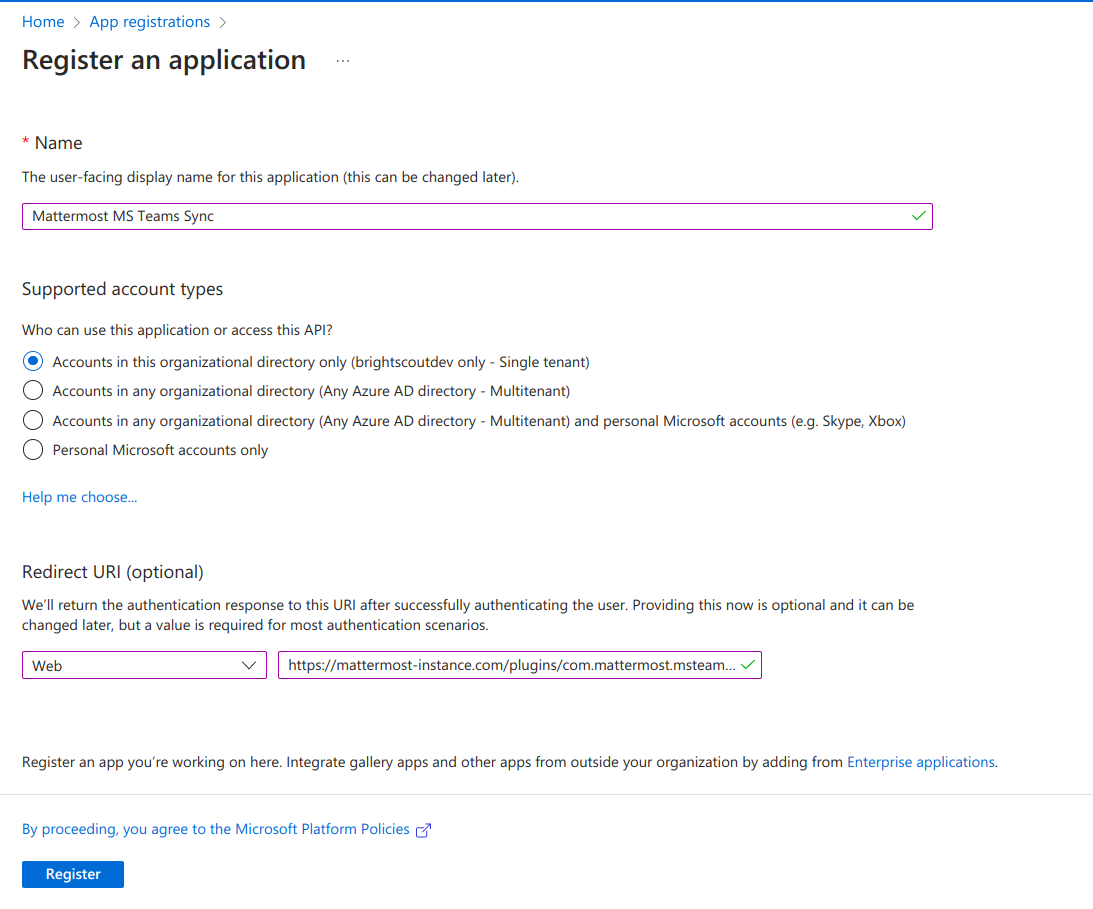
- Fill out the form with the following values:
- Name:
Origin by Corvus MS Teams- Supported account types:
Default value (Single tenant)- Platform:
Web- Redirect URI:
https://(MM_SITE_URL)/plugins/com.origin.msteams-sync/oauth-redirect
Replace (MM_SITE_URL) with your Origin by Corvus server's Site URL. Select Register to submit the form.
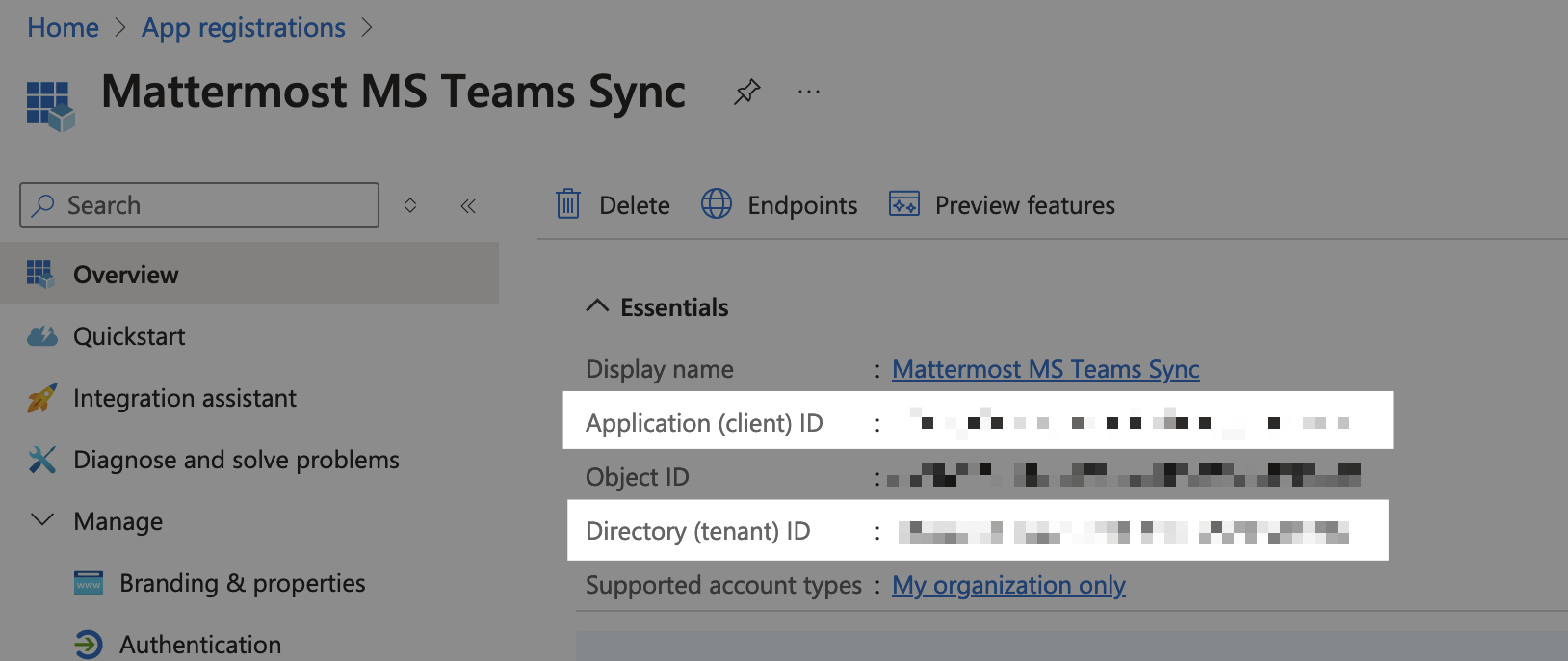
- From this screen, make note of the Application (client) ID and Directory (tenant) ID, needed later to configure the plugin in Origin by Corvus.
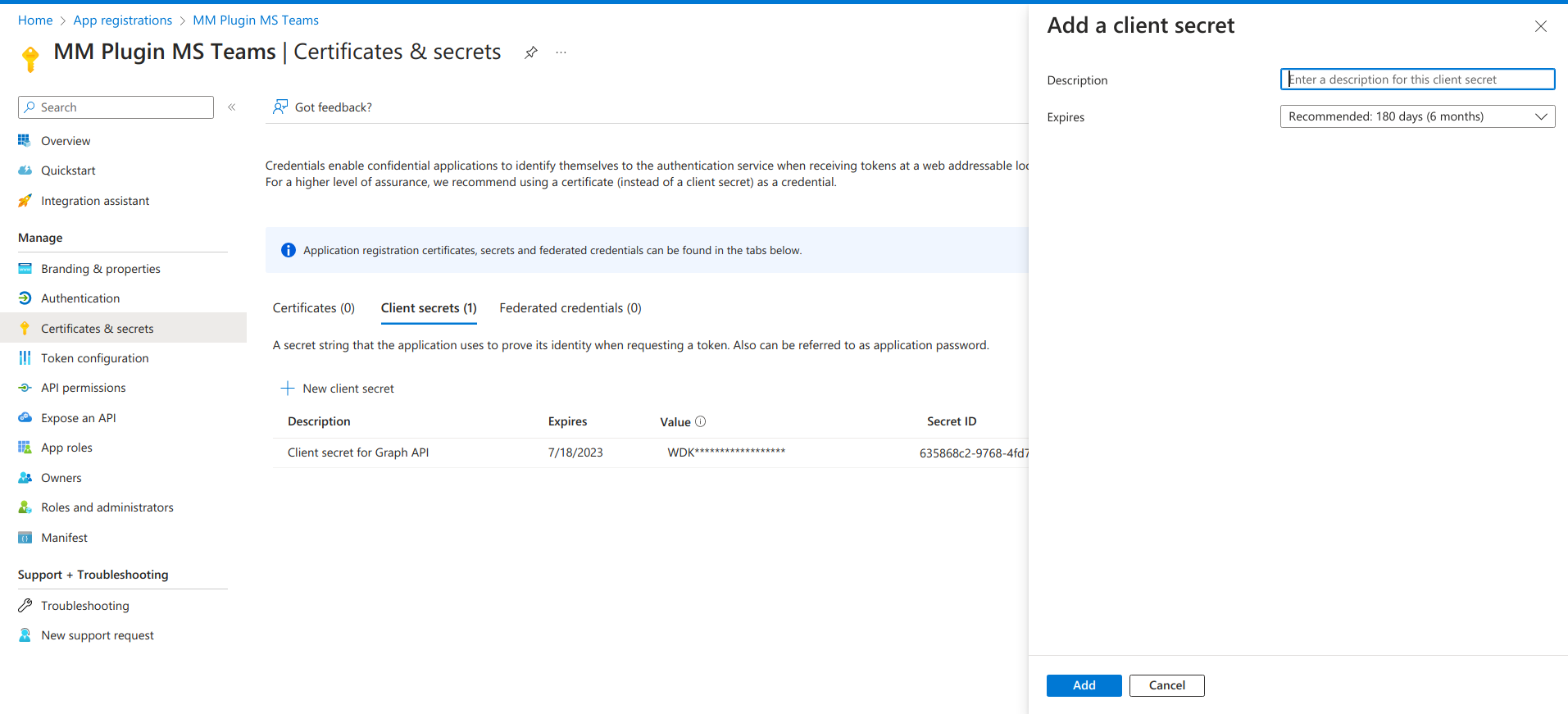
- Navigate to Certificates & secrets in the left pane.
- Select New client secret. Enter the description and select Add. After the creation of the client secret, copy the new secret value, not the secret ID. We'll use this value later in the Origin by Corvus System Console.
- Navigate to API permissions in the left pane.
- Select Add a permission, then Microsoft Graph in the right pane.
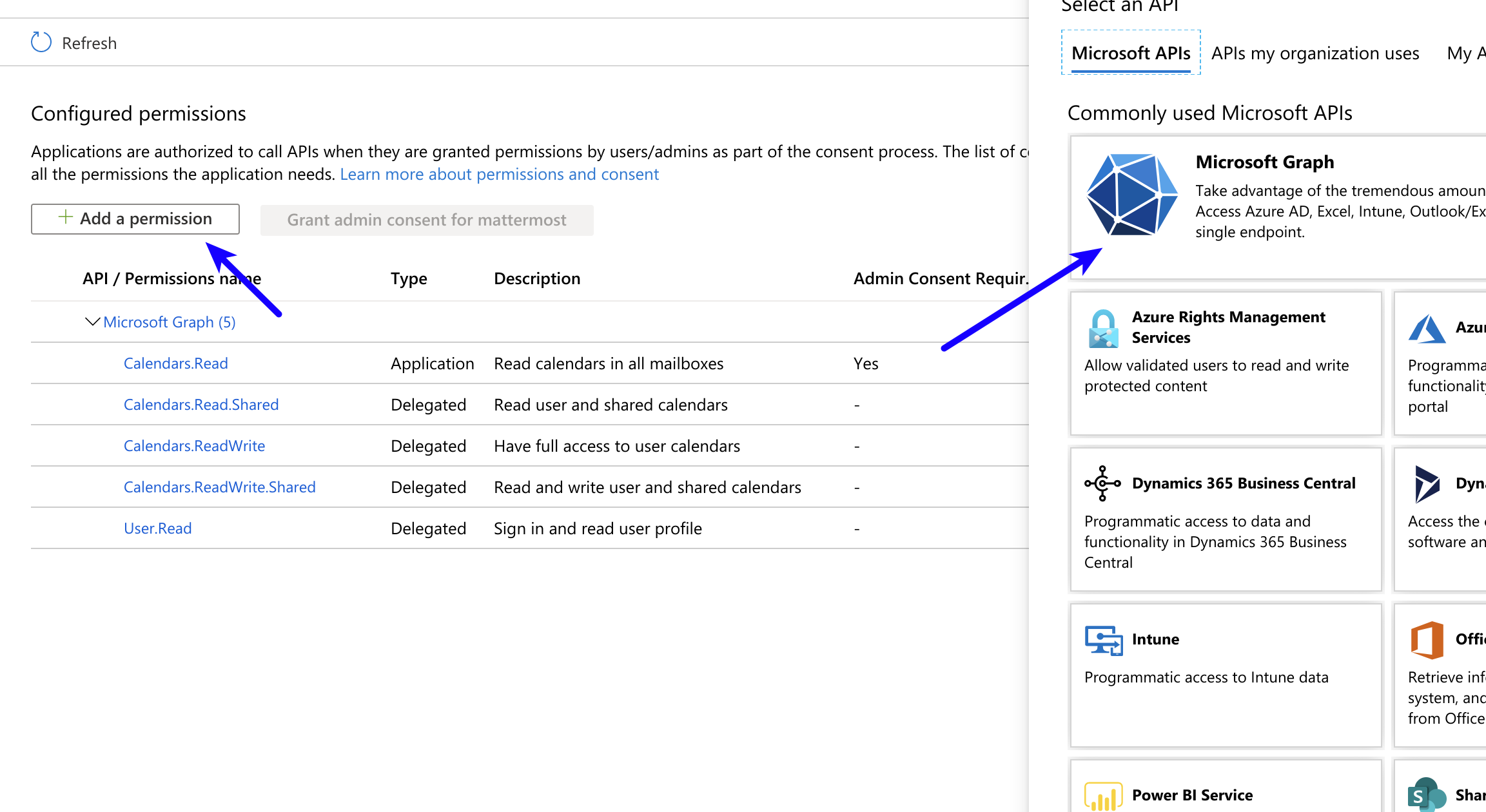
- Select Delegated permissions, and scroll down to select the following permissions:
Chat.ReadChatMessage.ReadFiles.Read.Alloffline_accessUser.Read
- Select Add permissions to submit the form.
- Next, add application permissions via Add a permission > Microsoft Graph > Application permissions.
- Select the following permissions:
Chat.Read.AllPresence.Read.All
- Select Add permissions to submit the form.
- Select Grant admin consent for... to grant the permissions for the application.
Ensure you have the metered APIs enabled (and the pay subscription associated to it)
Subscribing to chat notifications requires assocating the OAuth App with a paid Azure subscription. To complete this setup, follow the instructions at https://learn.microsoft.com/en-us/graph/metered-api-setup.
You're all set for configuration inside Azure.
Install and configure the Microsoft Teams integration in Origin by Corvus
- Log in to your Origin by Corvus workspace as a system admin.
- In Origin by Corvus, from the Product menu
 , select App Marketplace.
- Search for or scroll to MS Teams, and select Install.
- Once installed, select Configure. You're taken to the System Console.
- Configure the Tenant ID, Client ID, and Client Secret with the values obtained from setting up the OAuth App in Azure above.
See the Microsoft Teams plugin configuration settings documentation for additional configuration options.
Monitor performance
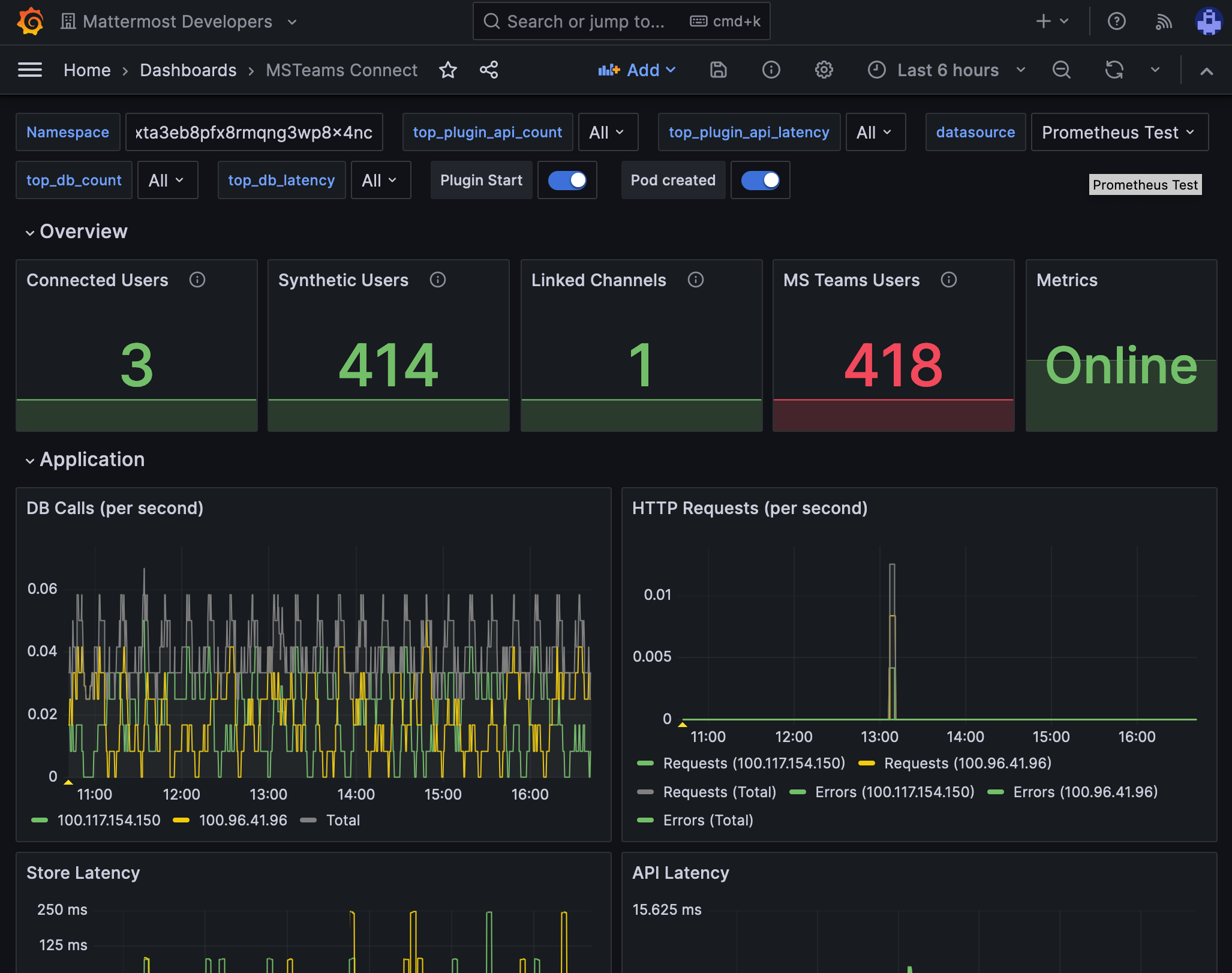
You can set up performance monitoring and performance alerting for this plugin using Prometheus and Grafana.
- Monitoring enables you to proactively review the overall health of the plugin, including database calls, HTTP requests, and API latency.
- Alerting enables you to detect and take action as issues come up, such as the integration being offline.
Grafana dashboards are available on GitHub for Origin by Corvus Cloud deployments as a useful starting point. These dashboards are designed for use in Origin by Corvus Cloud, and filter to a given namespace.
Use
See the collaborate within connected microsoft teams product documentation to start receiving Microsoft Teams notifications.
Upgrade
We recommend updating this integration as new versions are released. Generally, updates are seamless and don't interrupt the user experience in Origin by Corvus. Visit the Releases page for the latest release, available releases, and compatibiilty considerations.
Frequently asked questions
My email address in Origin by Corvus doesn't match my email address in Microsoft Teams: can I still connect?
No. Currently, only accounts with the same email addresses are allowed to be connected. Specify the email address that matches your Origin by Corvus account.
If connecting a Origin by Corvus account to a Microsoft Teams account with a different email address is something your workspace requires, there is an open GitHub issue for you to share your feedback.
How is encryption handled at rest and in motion?
The configured client secret, stored in the Origin by Corvus configuration, is used for app-only access to the the Microsoft Graph API. As users connect to Microsoft Teams using the integration, the resulting access tokens are encrypted and stored in the Origin by Corvus database to be used for access on behalf of the connected user. All communication between the integration and the Microsoft Graph API is conducted via TLS.
When notifications are enabled, chats and file attachments received by connected users will be stored as posts in the direct message channel between that user and the bot account created by the integration.
Are there any database or network security considerations?
There is nothing specific to the integration that is beyond what would apply to a Origin by Corvus instance.
Are there any compliance considerations (ie. GDPR, PCI)?
There is nothing specific to the integration that is beyond what would apply to a Origin by Corvus instance.
How is this integration architectured?
The integration subscribes to change notifications from the Microsoft Graph API. These change notifications inform Origin by Corvus about new or updated chats within Microsoft Teams. Upon receipt of the change notification, the integration uses a combination of its app-only access (via the client secret) and delegated acess (via connected users) to fetch the contents of these chats and represent them appropriately within Origin by Corvus.
Get help
Origin by Corvus customers can open a Origin by Corvus support case. To report a bug, please open a GitHub issue against the Origin by Corvus for Microsoft Teams Notifications plugin repository.
For questions, feedback, and assistance, join our pubic Integrations and Apps channel on the Origin by Corvus Community Server for assistance.