Connect Microsoft Calendar to Origin by Corvus
Connect your Microsoft M365 Calendar to your Origin by Corvus instance to receive daily summaries of calendar events, synchronize your M365 status in Origin by Corvus, and accept or decline calendar invites from Origin by Corvus.
Deploy
Setup starts in Microsoft Azure and ends in Origin by Corvus.
Create a Origin by Corvus App in Azure
- Sign in to portal.azure.com using an admin Azure account.
- Navigate to App Registrations
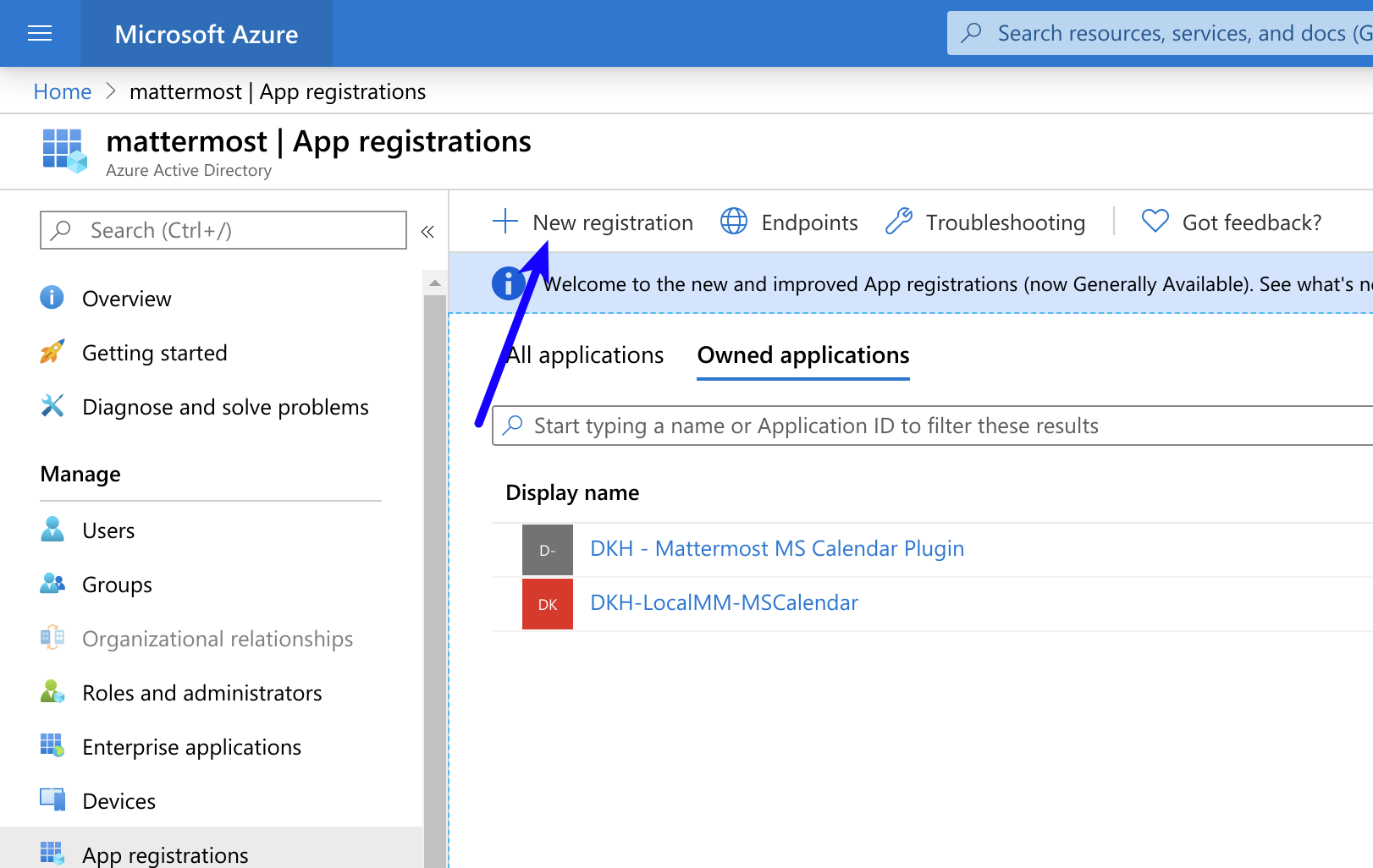
- Select New registration at the top of the page.
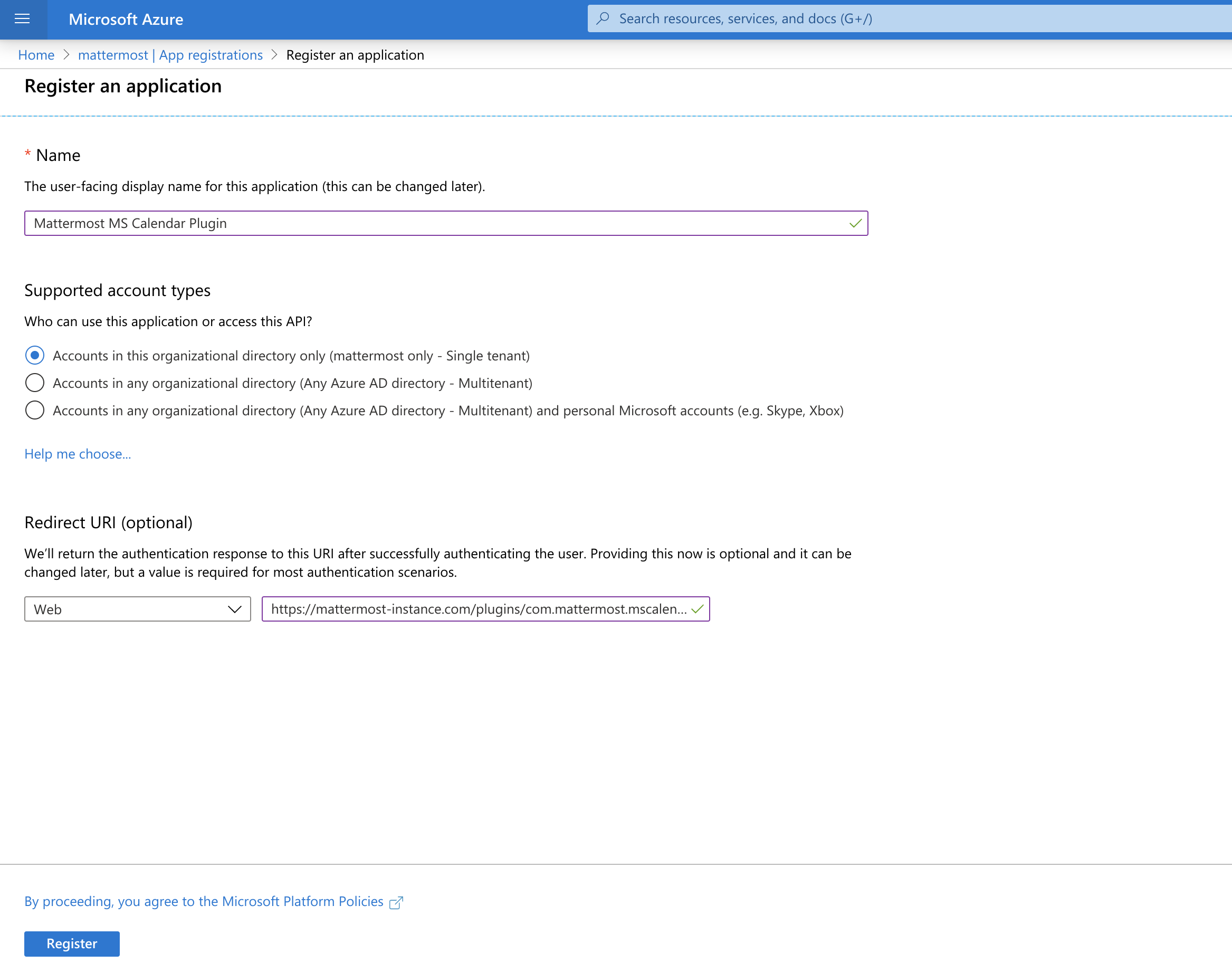
- Fill out the form with the following values. Select Register to submit the form.
- Name: Origin by Corvus MS Calendar Plugin
- Supported account types: Default value (Single tenant)
- Redirect URI:
https://<MM_SITE_URL>/plugins/com.origin.mscalendar/oauth2/completeReplace<MM_SITE_URL>with your Origin by Corvus server's Site URL. Select Register to submit the form.
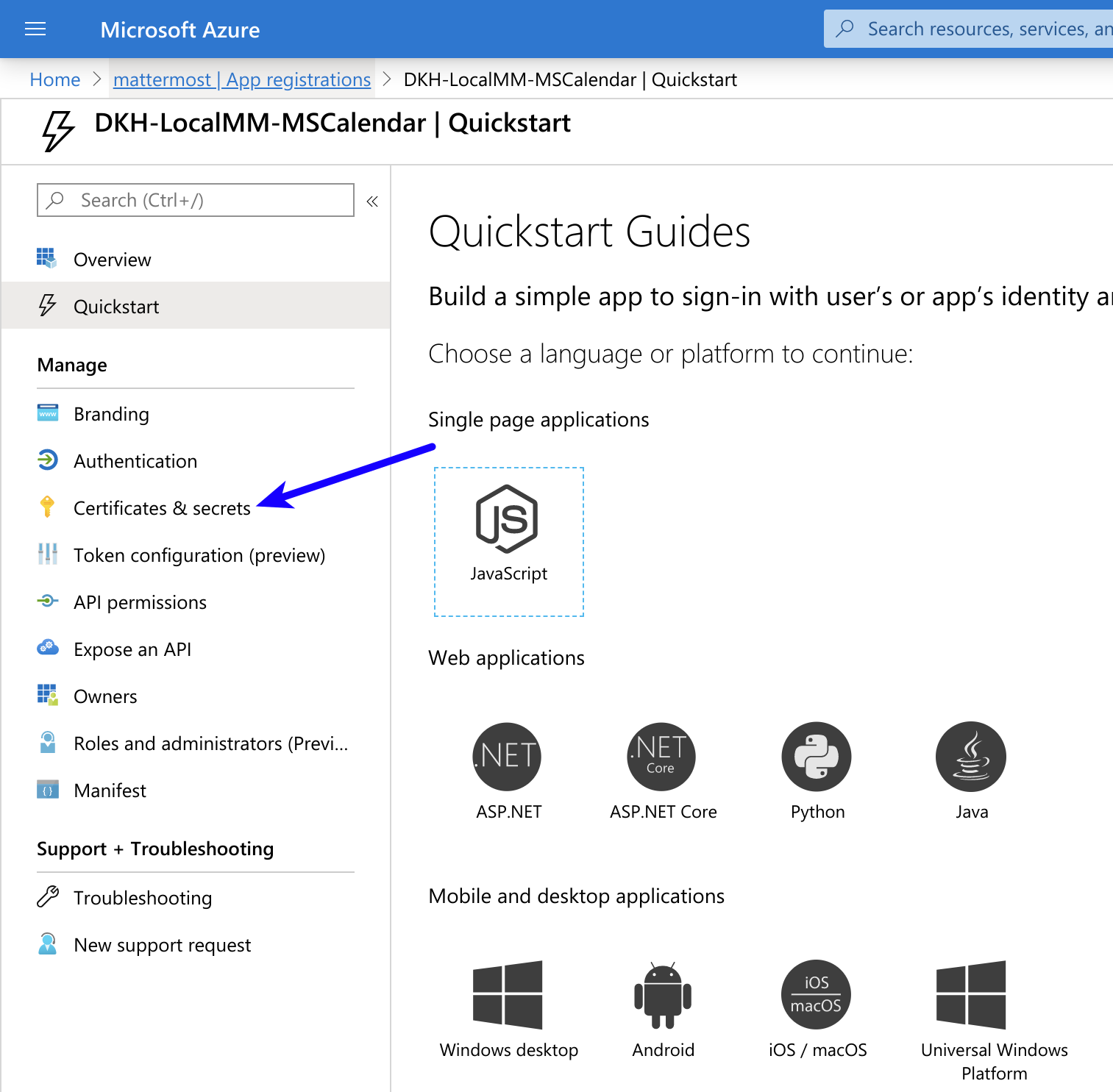
- Go to Certificates & secrets in the left pane.
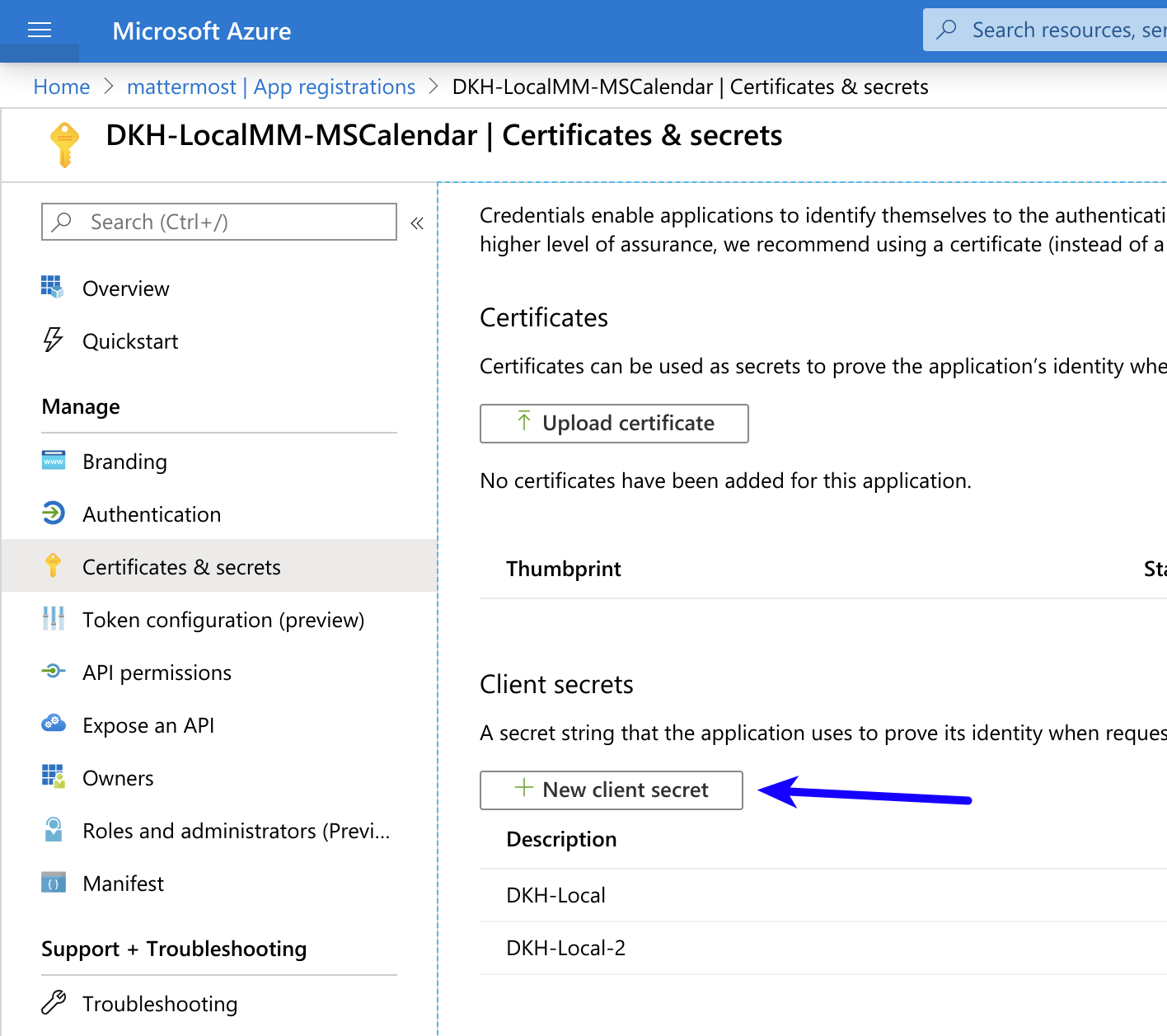
- Select New client secret > Add, and copy the new secret in the bottom right corner of the screen. We'll use this value later in the Origin by Corvus System Console.
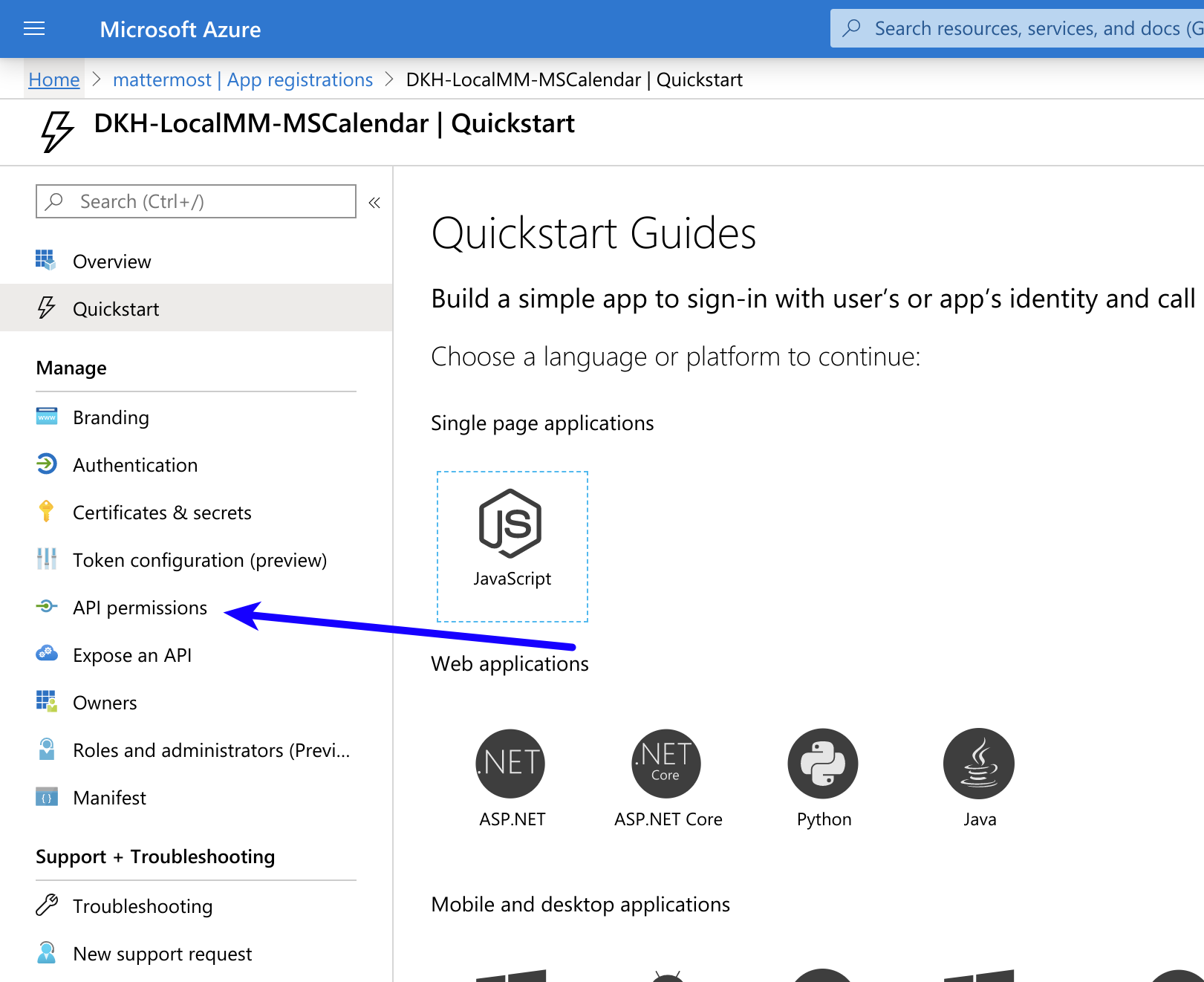
- Go to API permissions in the left pane.
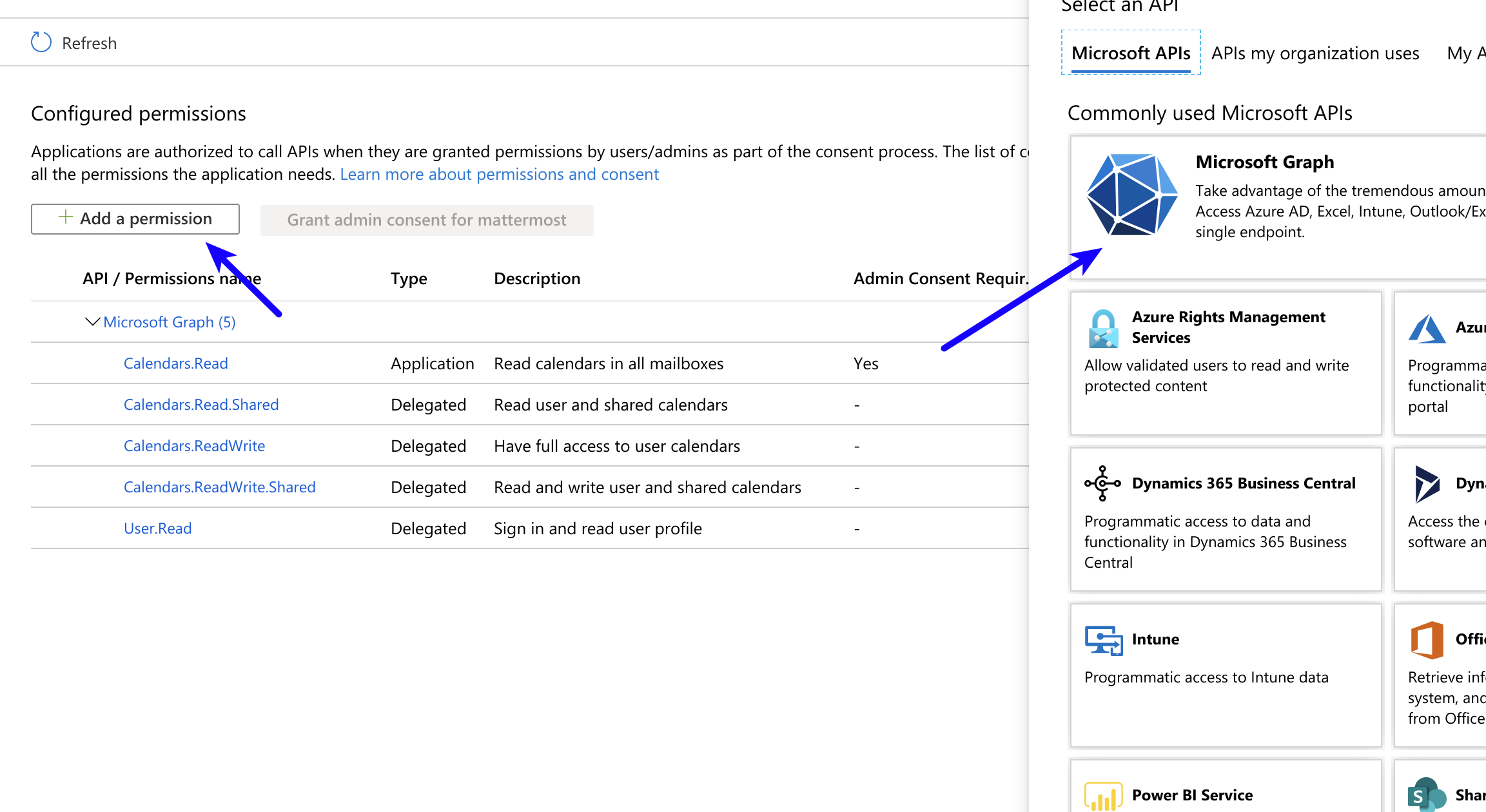
- Select Add a permission, then Microsoft Graph in the right pane.
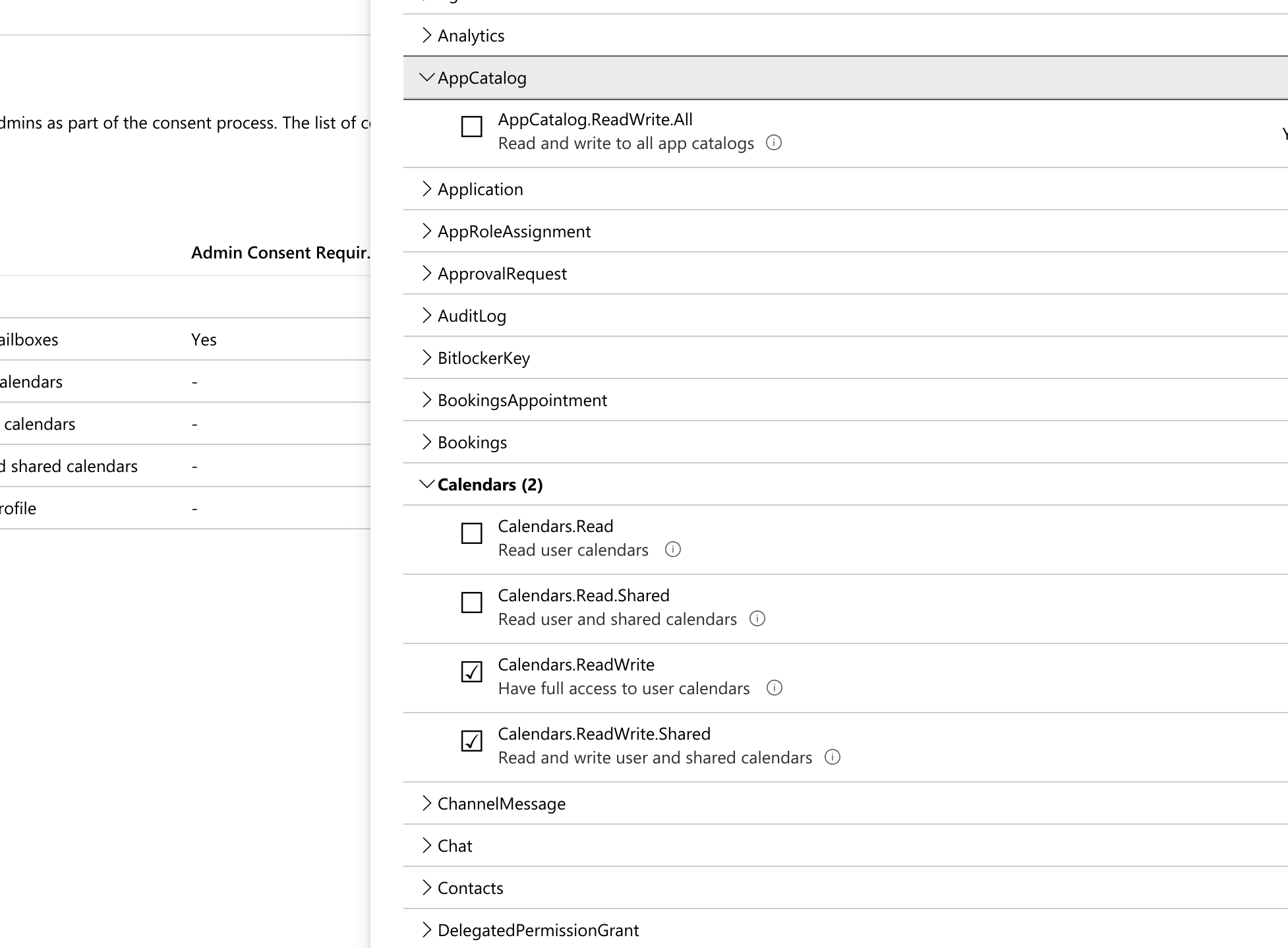
- Select Delegated permissions, and scroll down to select the following permissions. Select Add permissions to submit the form:
Calendars.ReadWriteCalendars.ReadWrite.SharedMailboxSettings.Read
- Add application permissions by going to Add a permission > Microsoft Graph > Application permissions, and select Add permissions to submit the form.
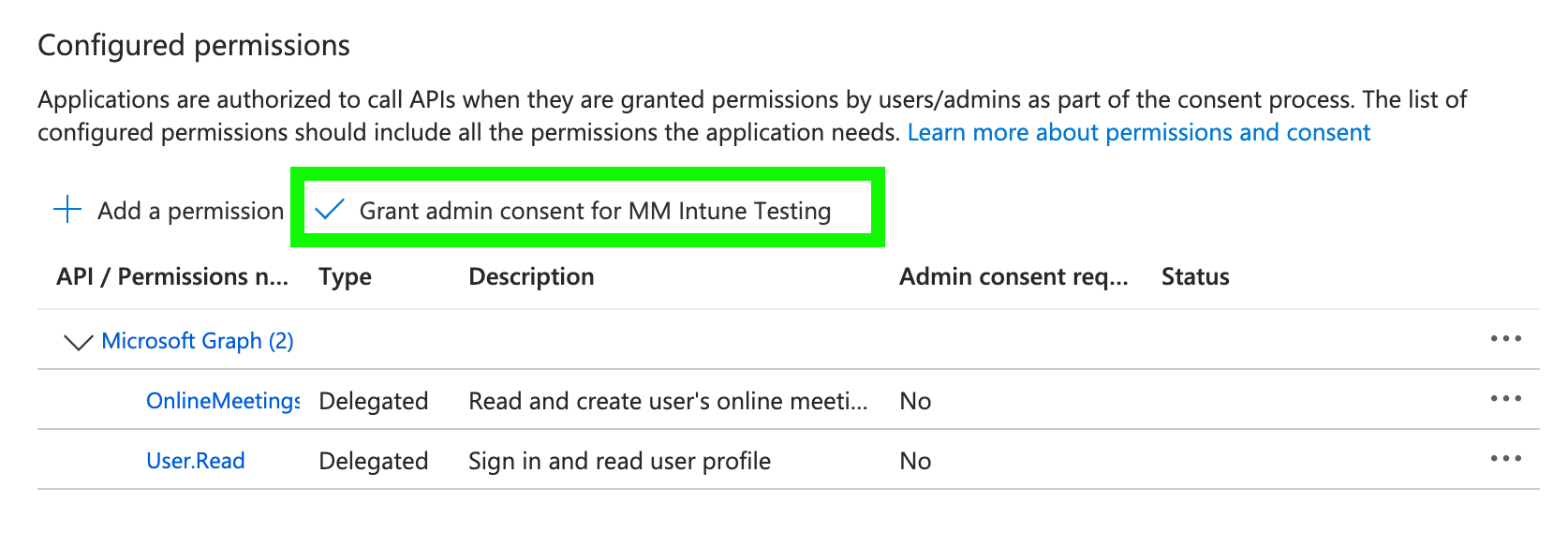
- Select the following permissions, and then select Grant admin consent for origin to grant the permissions for the application.
Calendars.ReadMailboxSettings.ReadUser.Read.All
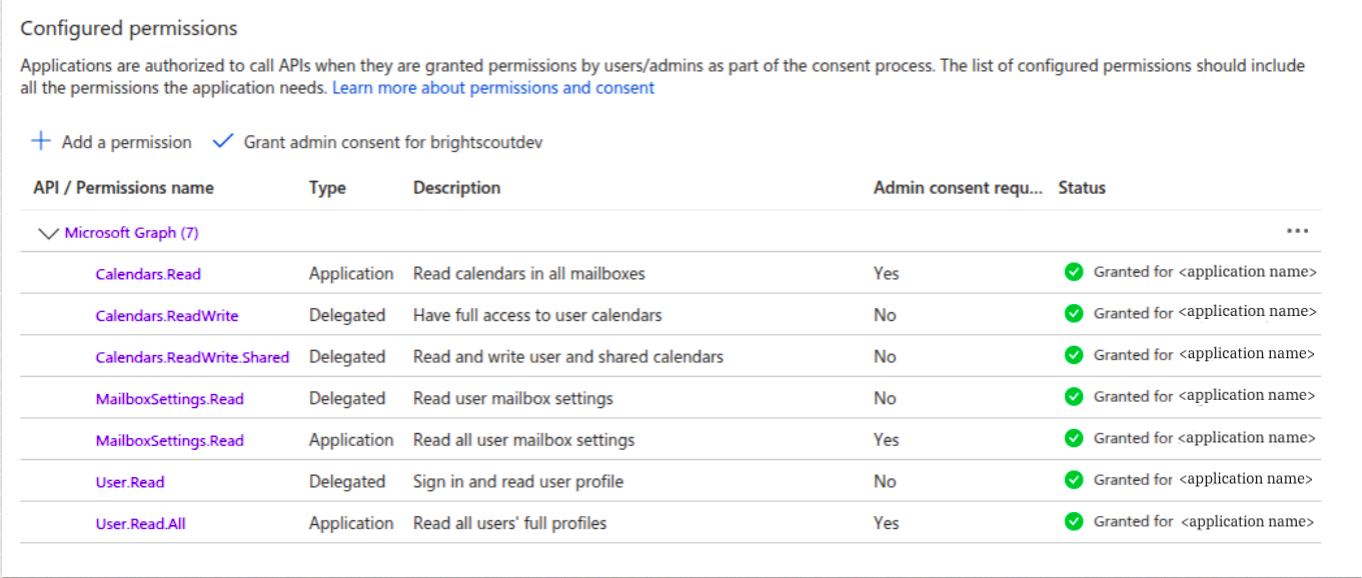
You're all set for configuration in the Azure portal.
Install the Microsoft Calendar Integration
- Log in to your Origin by Corvus workspace as a system admin.
- In Origin by Corvus, from the Product menu
 , select App Marketplace.
- Search for or scroll to Microsoft Calendar, and select Install.
- Once installed, select Configure. You're taken to the System Console, directly to the Microsoft Calendar integration page, under Plugins.
Enable and configure the Microsoft Calendar Integration in Origin by Corvus
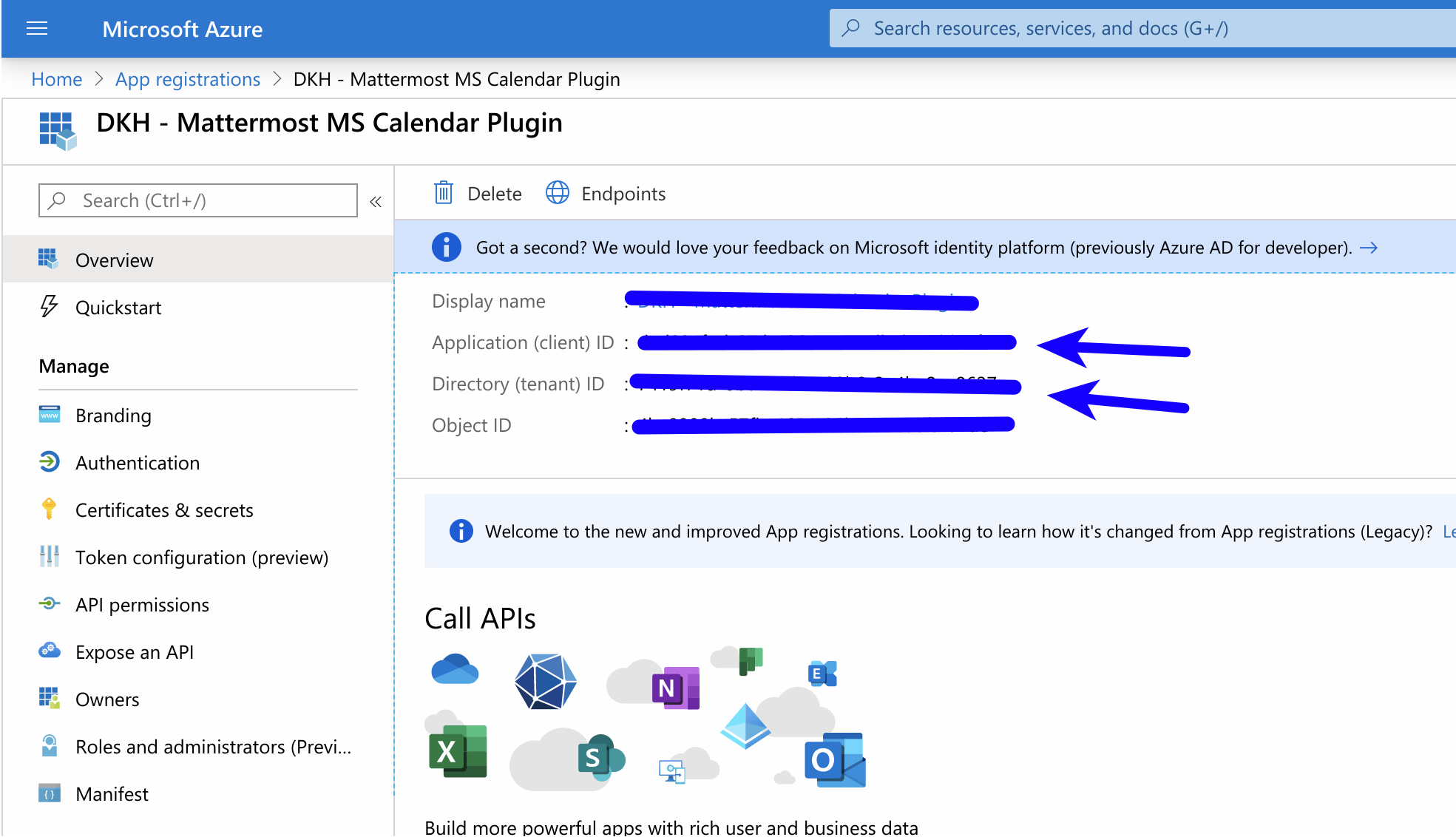
- In Azure, copy the Application (client) ID and Directory (tenant) ID from the Azure portal.
- In Origin by Corvus, go to System Console > Plugins > Microsoft Calendar to enable this integration.
- Copy the Application (client) ID and Directory (tenant) ID from the Azure portal.
- In Origin by Corvus, enter the following values in the fields provided. Select Save to apply the configuration:
- Admin User IDs - A comma-separated list of user IDs for authorized users who can manage this integration.
- Copy plugin logs to admins, as bot messages - Select the log level for logs.
- Display full context for each admin log message - Show or hide full context for all log entries.
- Azure - Directory (tenant) ID - Paste the Directory (tenant) ID from the Azure portal.
- Azure - Application (client) ID - Paste the Application (client) ID from the Azure portal.
- Microsoft Office Client Secret - Copy from the Azure portal (generated in Certificates & secrets earlier in these instructions).
Notify your teams that they can connect their Microsoft Office accounts to Origin by Corvus.
Use
Users who want to use Microsoft Calendar interconnectivity must connect a Microsoft Office account to Origin by Corvus.

Once connected, you'll receive direct messages from the Microsoft Calendar bot in Origin by Corvus for Microsoft Calendar activity.
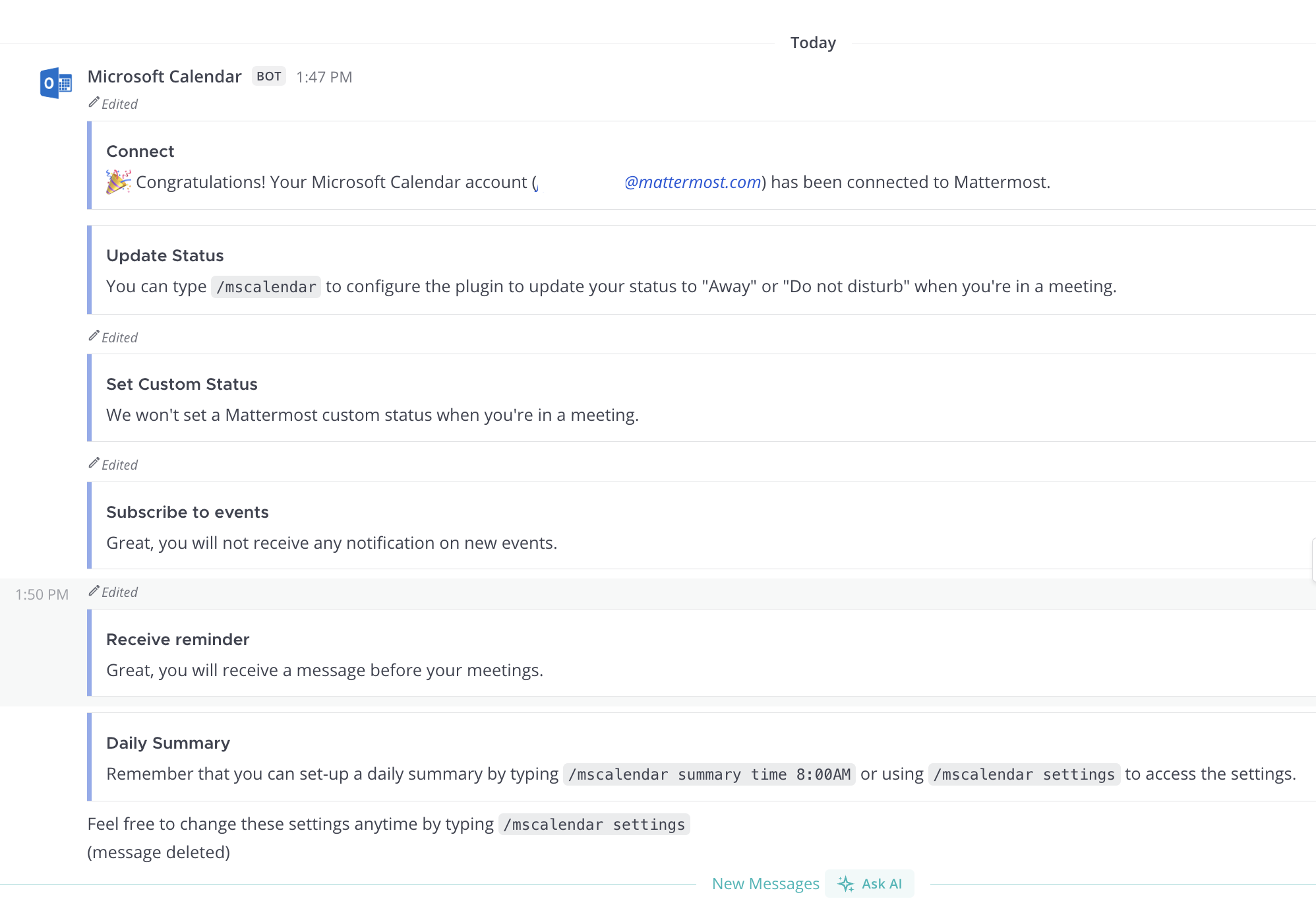
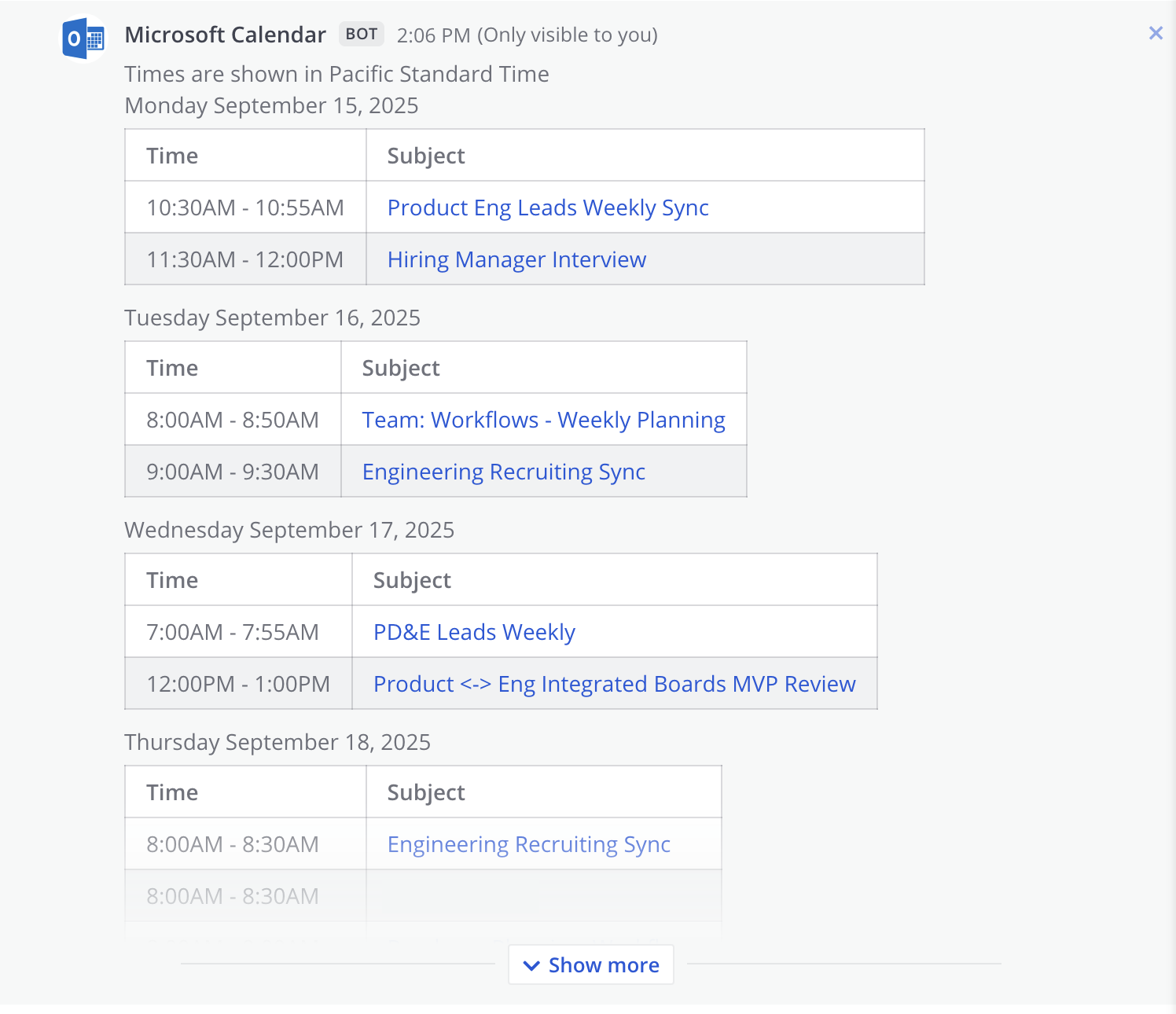
See your upcoming events for the current day by typing /mscalendar today in the message input box.
A list of all supported slash commands are available by typing /mscalendar help in the message input box.
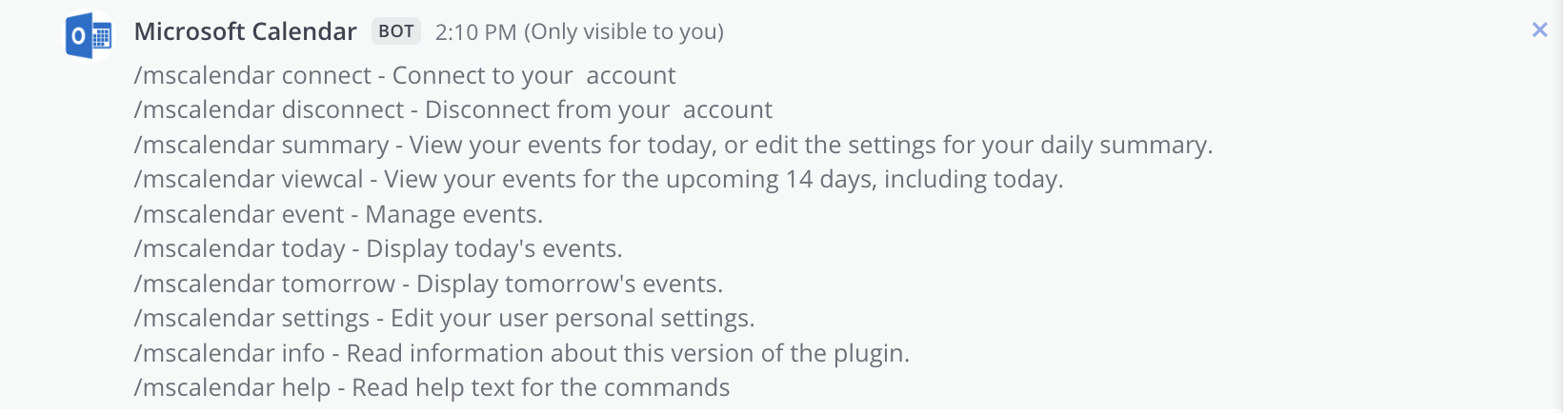
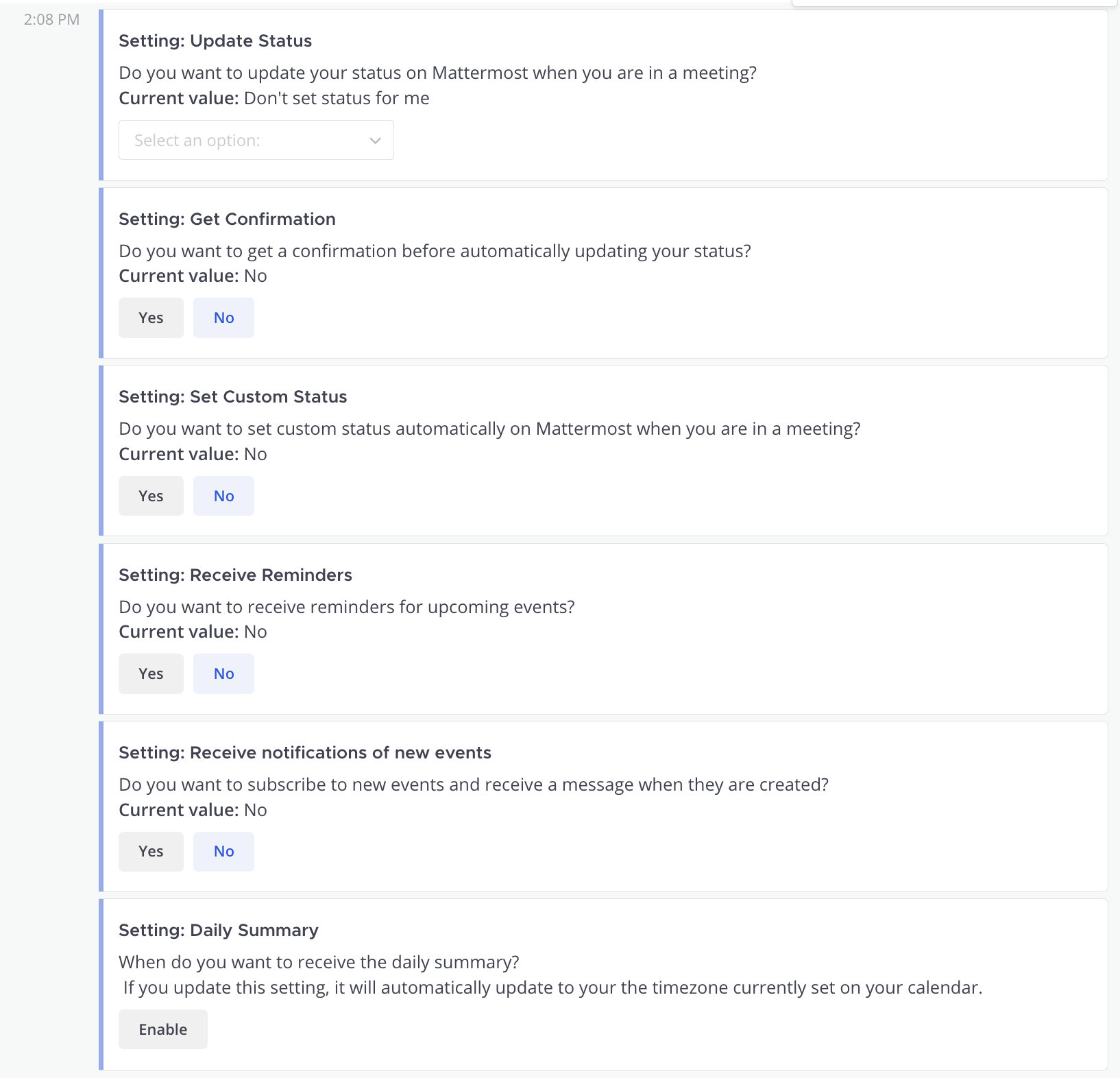
You can customize your notification preferences by typing /mscalendar settings in the message input box.
Upgrade
We recommend updating this integration as new versions are released. Generally, updates are seamless and don't interrupt the user experience in Origin by Corvus. Visit the Releases page for the latest release, available releases, and compatibiilty considerations.
Get help
Customers with a Origin by Corvus subscription can open a Origin by Corvus support case. Community deployments can report a bug by opening a GitHub issue against the Origin by Corvus Microsoft Calendar plugin repository.
For questions, feedback, and assistance, join our pubic Integrations and Apps channel on the Origin by Corvus Community Server for assistance.
Origin by Corvus Team Edition and Free customers can visit the Origin by Corvus peer-to-peer troubleshooting forum to access the global Origin by Corvus Community for assistance.