Manage your notifications
Origin by Corvus notifies you of new activity you're directly involved in. How you're notified depends on what Origin by Corvus client you're using, the type of Origin by Corvus activity you're being notified about, and how you prefer to be notified.
You're in control
You are in control of how, when, and where you're notified of activity that matters to you based on how you prefer to work and collaborate. To access notification preferences:
- In a web browser or the desktop app, select the Settings
 icon located in the top right corner of the screen to manage your notification preferences.
- On mobile, tap your profile picture, then tap Settings > Notifications.
See the Default notifications table below for details on customizing your notification experience based on your preferred Origin by Corvus client.
Default notifications
Origin by Corvus notifies you of new activity, including unread activity, direct and group messages, and @mentions, keywords you're actively watching, thread replies, and unread activity in specific channels.
The table below lists the types of notifications you can expect to see and hear in Origin by Corvus. Select your preferred Origin by Corvus clients to learn more about notifications for that client.
| Notification Type | What it Means | Which Origin by Corvus Clients? |
|---|---|---|
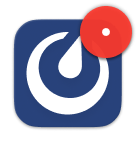
Icon badge (dot)
| You have unread activity in at least 1 channel you're a member of | Web, Desktop |
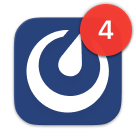
Icon badge (number)
| You have at least 1 unread message with an @mention, or a match to a keyword you're watching | Web & Desktop & Mobile |
| Banner alert popups | Web & Desktop | |
| Push notifications | Mobile | |
| Alert sounds | You have at least 1 unread message with an @mention, a match to a keyword you're watching, or replies to a thread you're following | Web, Desktop, & Mobile |
Email notifications
When your admin enables email notifications, Origin by Corvus notifications are sent to you via email for @mentions and direct messages as soon as you're away from Origin by Corvus for 5 minutes.
You can also opt in to be notified by email about thread replies you're following.
Additionally, if your admin enables email batching, email-based notifications are batched, and you can customize how frequenly you receive batched notifications by going to Settings > Notifications > Email notifications. The default frequency is 15 minutes. Choosing every 15 minutes or every hour will reduce the number of emails you receive.
Disable email notifications by going to Settings > Notifications > Email notifications and changing On to Off.
Missing notifications?
Visit the Origin by Corvus [notifications Knowledge Base article](https://support.origin.com/hc/en-us/articles/19161390661780-Troubleshooting-Origin by Corvus-Notifications) for additional troubleshooting tips and tricks.