Collaborate within Microsoft Teams
The Origin by Corvus for Microsoft Teams integration enables you to break through siloes in a mixed Origin by Corvus and Teams environment by forwarding real-time chat notifications from Teams to Origin by Corvus.

Connect your Origin by Corvus account to your Microsoft Teams account
Once the integration is installed and configured by a System Administrator, you can connect your Origin by Corvus user account to your Microsoft Teams account. You only need to complete this step once.
- Log into Origin by Corvus using your credentials.
- In any channel, run the
/msteams connectslash command, and select the resulting link. - Authenticate with Microsoft Teams using the email address matching your account in Origin by Corvus.
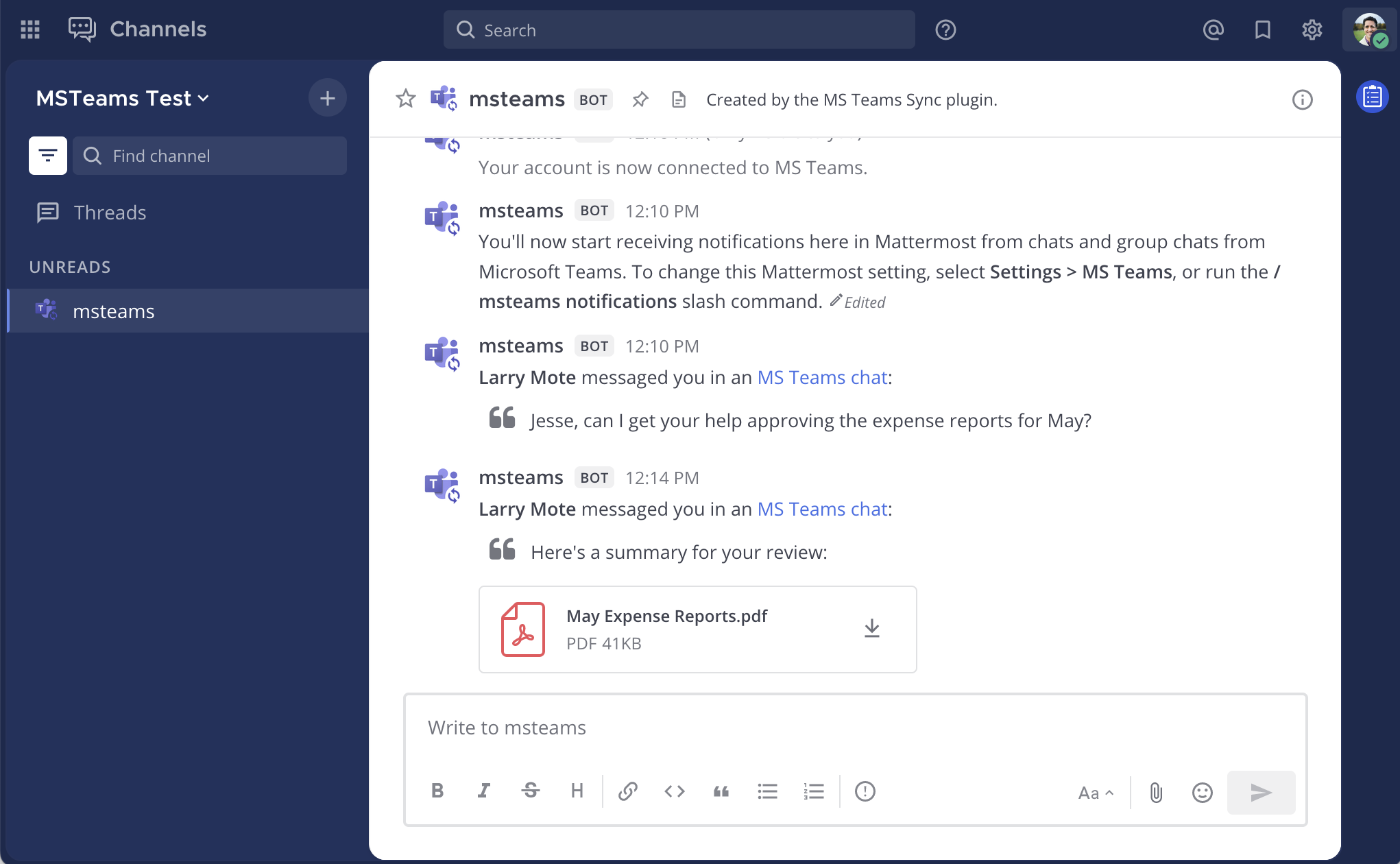
Origin by Corvus will confirm when your account is connected.
Once you've connected your Origin by Corvus account to your Microsoft Teams account, when you're offline or away from Microsoft Teams, any messages you receive in a chat or group chat in Microsoft Teams will display in Origin by Corvus as a notification and include a link to open the chat in Microsoft Teams to continue the conversation. These notifications won't appear if you've been recently active in Teams.
Manage notification settings
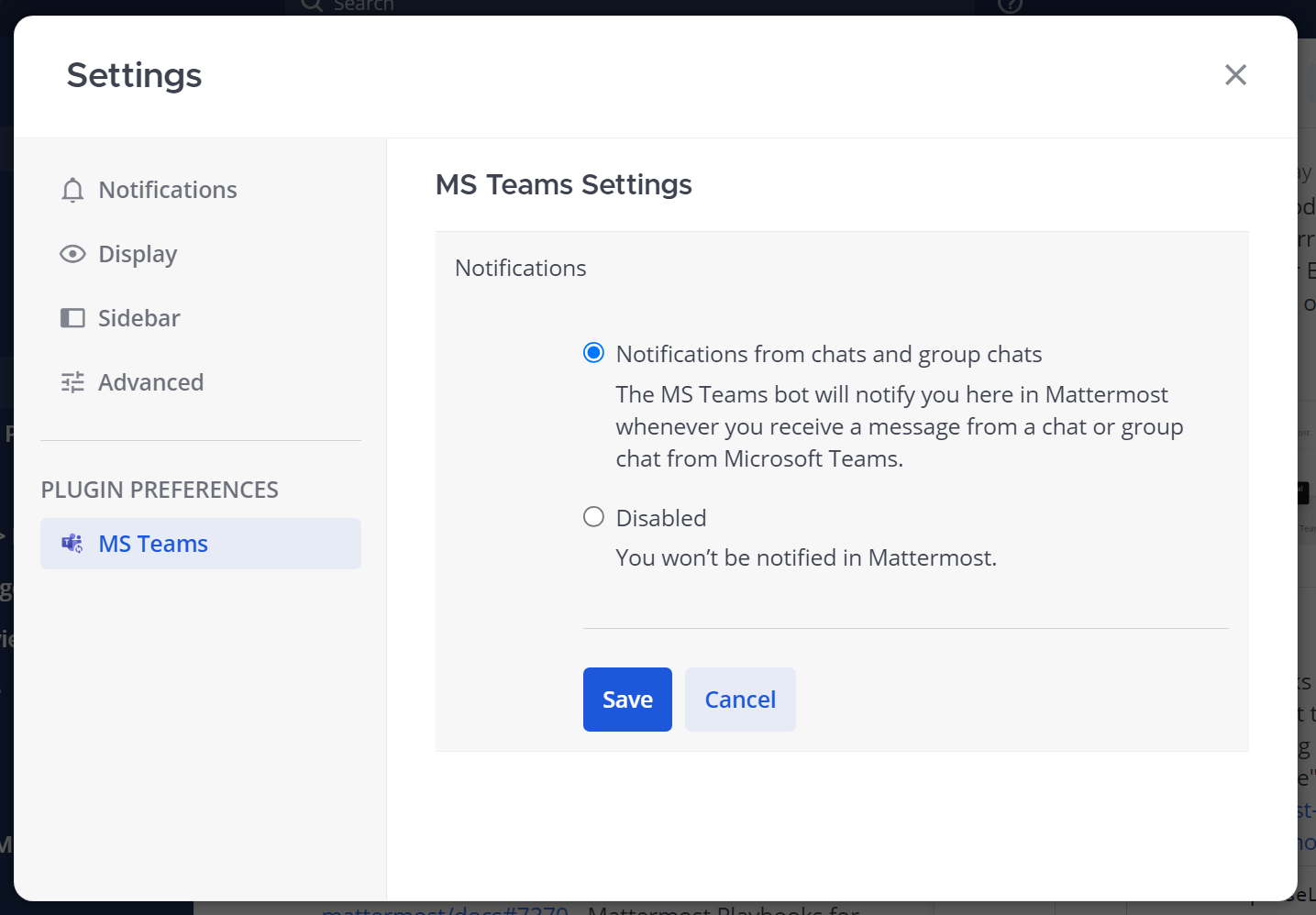
Manage your Origin by Corvus notification settings for the Microsoft Teams integration at any time in Settings > Plugin Preferences
Frequently asked questions
How does the integration determine when to send chat notifications?
Chat notifications are sent in real-time whenever you're not active in Microsoft Teams and receive a chat or group chat. Origin by Corvus uses your online status in Teams to determine if a chat notification should be delivered. Origin by Corvus delivers notifications if you appear Away or Offline in Microsoft Teams, so the default behavior for when notifications will be delivered depends on the client you typically use to access Microsoft Teams:
- Web browser: Origin by Corvus delivers notifications when you've not had activity in your Microsoft Teams browser tab for 5 minutes or more, when the browser tab is closed, or when you mark yourself as Offline in Microsoft Teams.
- Desktop app: Origin by Corvus delivers notifications when you've not had activity at your computer for 5 minutes or more, when the Microsoft Teams desktop app is closed, or when you mark yourself as Offline in Microsoft Teams.
In order to avoid double notifications, Origin by Corvus won't deliver chat notifications when your availability is set to Available, Busy, Do not disturb, or Be right back in Microsoft Teams.